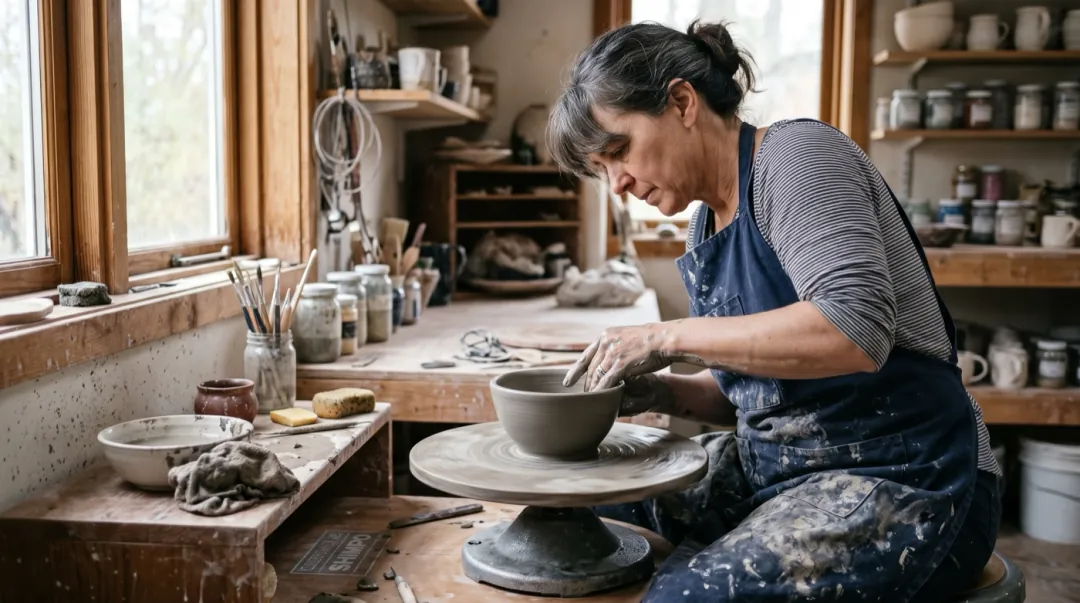
Turning a photo into a video takes about a minute of your time and a few minutes of waiting. What decides whether the clip looks right is not the button you press but four small choices before it: which photo, which words, which model and what you change when the first try is off. This guide walks through each one with the clip above, made from a single photo of a potter at her wheel.
- Use a sharp photo with one clear subject and some space around it.
- Write one line: who moves, how, and what the camera does.
- Start on a low-cost model at 480p, then rerun the keeper at a higher size.
- If something looks wrong, change one thing at a time.
What you need
- One sharp photo from your phone or a scan, with the face or the subject in focus.
- Video credits on your account. Sign-up credits cover pictures; the price of each clip shows on the button before you start.
- One idea for the main move: a smile, a turn, a pour.
Start with a photo that wants to move
The model does not see your photo the way you do. It sees edges, faces, hands and empty space, and it guesses what happens next. The easier that guess is, the better the clip. A photo of one person mid-action, with room around them, is an easy guess. A crowded street where nobody is in focus is a hard one: the model has to invent where twenty people walk, and it usually gets some of them wrong.
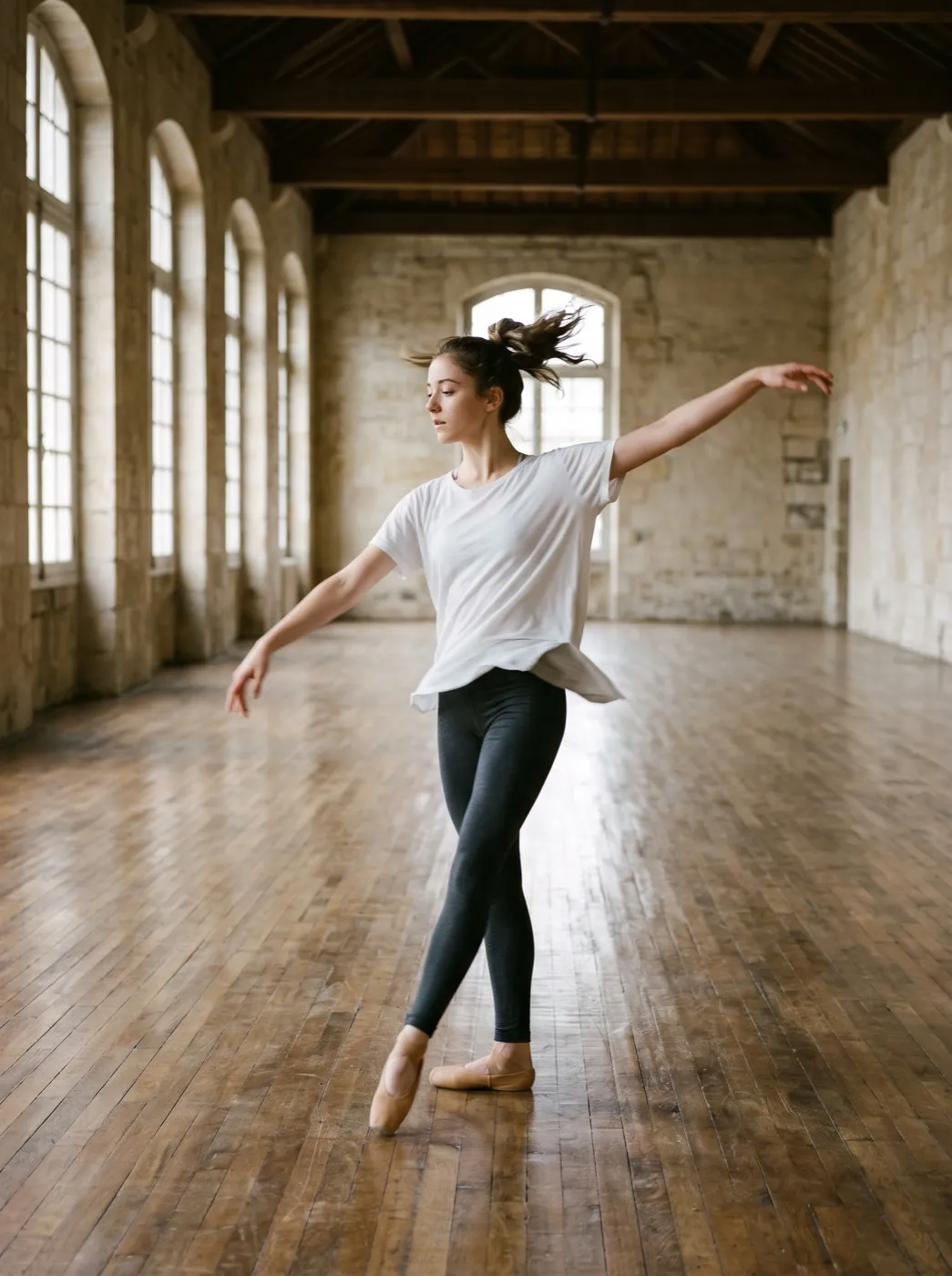
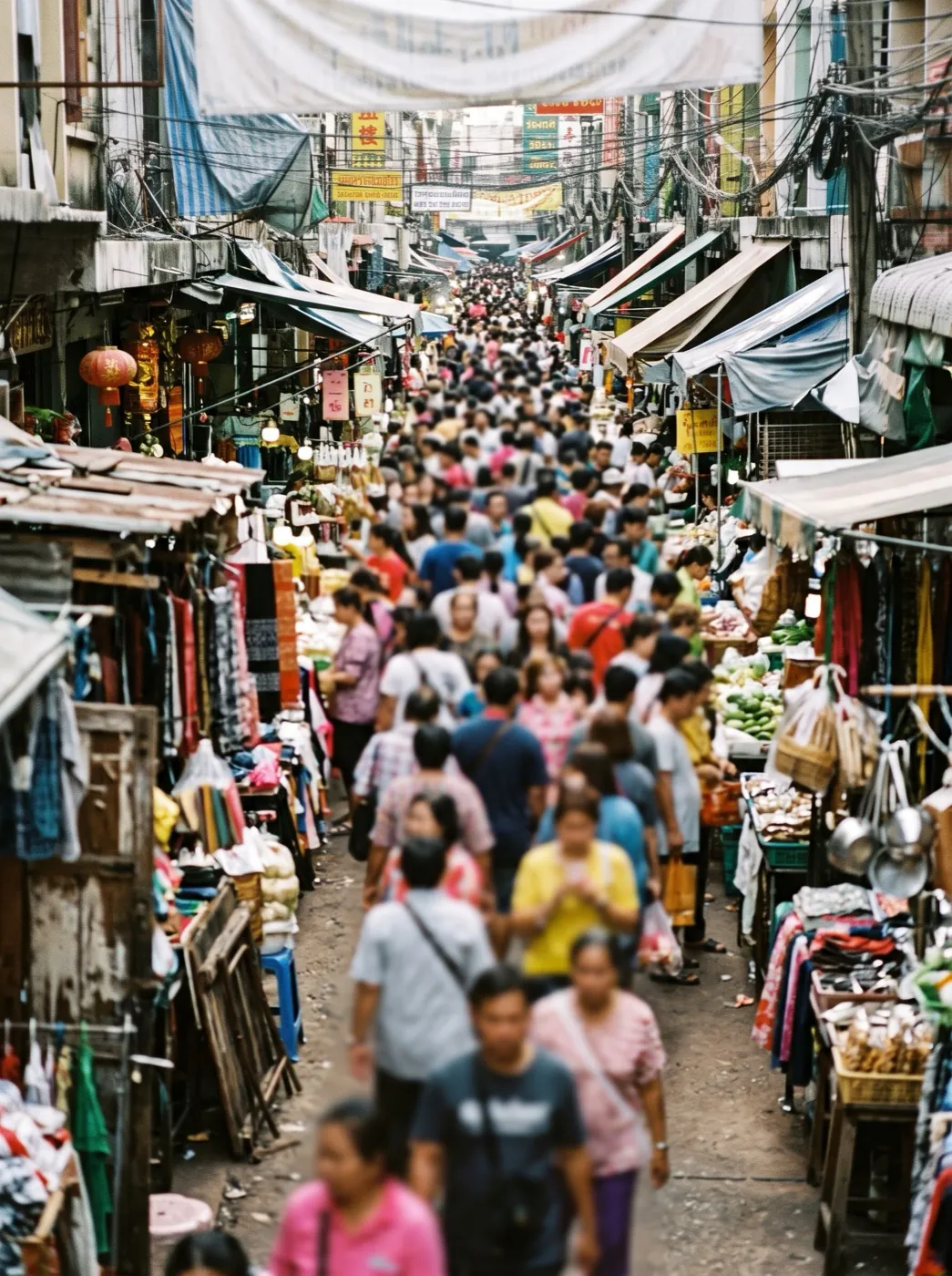
Before you upload, check the photo against this list:
- One subject the eye goes to first. A person, a pet or a product, not a crowd.
- Sharp where it matters. Faces and hands in focus; a soft background is fine.
- Room to move. Some space around the subject, so a turn or a step does not leave the frame.
- Even light. Hard shadows across a face tend to flicker as the face moves.
- Under 10 MB, JPG, PNG or WebP. Phone photos are fine as they are.
The shape of the photo becomes the shape of the clip. A tall phone photo makes a tall clip for Reels or TikTok; a wide one makes a wide clip. If you need a different shape, crop the photo first with the crop tool rather than hoping the model fills the gap.
Write one line about the motion
A prompt is required, but it only needs to be one sentence. Say who moves and what they do, then add the camera if you care about it. Here is the exact line we used for the potter:
Her hands draw the clay up into a bowl as the wheel spins, she looks up and smiles. Realistic motion, keep the first frame’s look.
The first part is the action: her hands draw the clay up. The second part is what follows from it: the wheel spins, she looks up and smiles. The last part asks the model to keep the look of the photo. That is the whole recipe. You do not need to describe the photo itself, because the model can already see it. Words like "a woman in a studio" only take attention away from the motion.
Most of our other guide examples end with the same closing line: "One continuous shot, no cuts, natural physics, stable faces and hands." It stops models from cutting to a new angle halfway through, which some of them do when a prompt reads like a story.
Keep it to one or two actions. Each extra event is another thing the model has to fit into five seconds, and past three or four it starts to cut, merge or skip them. The prompt guide shows the same photo with a vague prompt, a clear one and one that asks for too much, and what each one made.
Pick a model for this photo
Every model on this site takes the same photo and prompt; they differ in how faces hold up, whether sound comes with the picture, how long a clip can be and what it costs. You see the credits before you press Generate, and the number does not change after. For a first try, these are the picks we reach for:
| If you need | Pick | Credits |
|---|---|---|
| A cheap first draft | Seedance 2 Mini | 30 · 480P 5s |
| Sound in the same run, lowest price | MiniMax H3 | 15 · 480P 5s |
| A face that must stay the same | Kling 4.0 | 180 · 720P 5s |
| Realistic motion and sound, 8 seconds | Veo 3.1 Fast | 40 · 720P 8s |
 Seedance 2 Mini
 MiniMax H3
 Kling 4.0
 Veo 3.1 Fast
The habit that saves the most credits: draft at 480p, and only once the motion is right, run the same photo and prompt again at a larger size or on a stronger model. A 480p draft shows you whether the hands bend the right way just as well as a 1080p one does. The model guide goes through every model by what your photo needs.
Run it and download
- 1Open Photo to Video and drop in your photo.
- 2Write your line in the prompt box. If the box is empty, Generate asks you for one first.
- 3Pick the model, length and size. The credits for that run show on the button.
- 4Press Generate. Most clips are ready in one to four minutes; you can leave the page and find it later under Assets.
- 5Play it through once at full size, then download the MP4 or run it again with a change.
If a run fails or the model refuses the photo, the credits go back to your balance on their own. Finished clips stay in your account for 30 days, so download the ones you want to keep.
When the clip looks wrong
Most first tries are close but not quite right. The fixes are usually small, and the rule is to change one thing per run so you know what helped:
| What you see | Why | What to change |
|---|---|---|
| Almost nothing moves | The prompt did not name an action, so the model played it safe. | Name one clear action: "she turns and smiles", not "make it move". |
| The clip cuts to a new scene | Too many events for one short shot. | Drop to one or two actions and add "one continuous shot, no cuts". |
| The face changes halfway | A small or side-lit face in the photo, or a big head turn. | Use a closer photo, ask for a smaller move, or try Kling 4.0. |
| Hands melt or gain fingers | Hands that are small, blurred or overlapping in the photo. | Keep hands still in the prompt, or pick a photo where they are clear. |
| The camera drifts on its own | No camera move was asked for, so the model chose one. | Add "camera holds still" or name the move you want. |
When the motion is right but the picture is soft, you do not need to start over: run the clip through the video upscaler, or rerun the same prompt at a larger size.
Try it on your own photo
The button below opens the generator with this exact example loaded: the potter photo, the prompt and the model. Swap in your own photo, change the words to fit it and press Generate.
FAQ
How long does it take to turn a photo into a video?
Most clips are ready in one to four minutes, depending on the model, length and size. You can close the page while it runs; the clip appears under Assets when it is done.
Do I have to write a prompt?
Yes, one line is enough. Say who moves and how, for example "she turns and smiles" or "steam rises, slow push-in". If the box is empty, Generate asks you for a line first.
Which photos turn into the best videos?
A sharp photo with one clear subject, even light and some space around the subject. Busy scenes with many small people are the hardest to animate well.
What happens if the clip fails?
If a run fails or the model refuses the photo, the credits are returned to your balance automatically. You can change the photo or the prompt and try again.
Can I make the clip longer or sharper afterwards?
Yes. You can extend a finished clip from its last frame, and the video upscaler makes a soft clip sharper without rerunning the whole thing.